


Live speech translation

Live captions. In your language.

Turn speech into captions, listen to a live translation, or save a transcript. Capture your microphone or computer audio on macOS and Windows.

Caption studio

Hear the speaker. Then hear the translation.

Choose Russian or Greek to hear each English sentence followed by its translation.

Original audioEnglish

Good morning, and welcome to Cyprus.

Voice translation

Καλημέρα σας και καλώς ήρθατε στην Κύπρο.

What can you do with Voice?

Films, webinars and classes

  • Read the original or translated captions over a film or webinar. The overlay is visible only to you.
  • Follow a lesson or presentation with live captions in the language being spoken.
Video examples

These clips use synthetic voices.

Subtitles for films and webinars

Capture computer audio and read the original and translation in a private overlay.

Read along in class

Turn on same-language captions for a class or presentation so people who miss spoken words can follow the text.

Calls and online meetings

  • Translate both sides of a call by capturing your microphone and the other person’s audio separately.
  • Post a caption link in Zoom or Teams so participants can follow the translation in their browser.
Video examples

These clips use synthetic voices.

Translate both sides of a call

Capture your microphone and the call as separate streams so each side can be translated into the other language.

Share captions in a meeting

Send a caption link in a Zoom or Teams chat. Participants follow in their browser while the meeting stays open.

Conferences and live streams

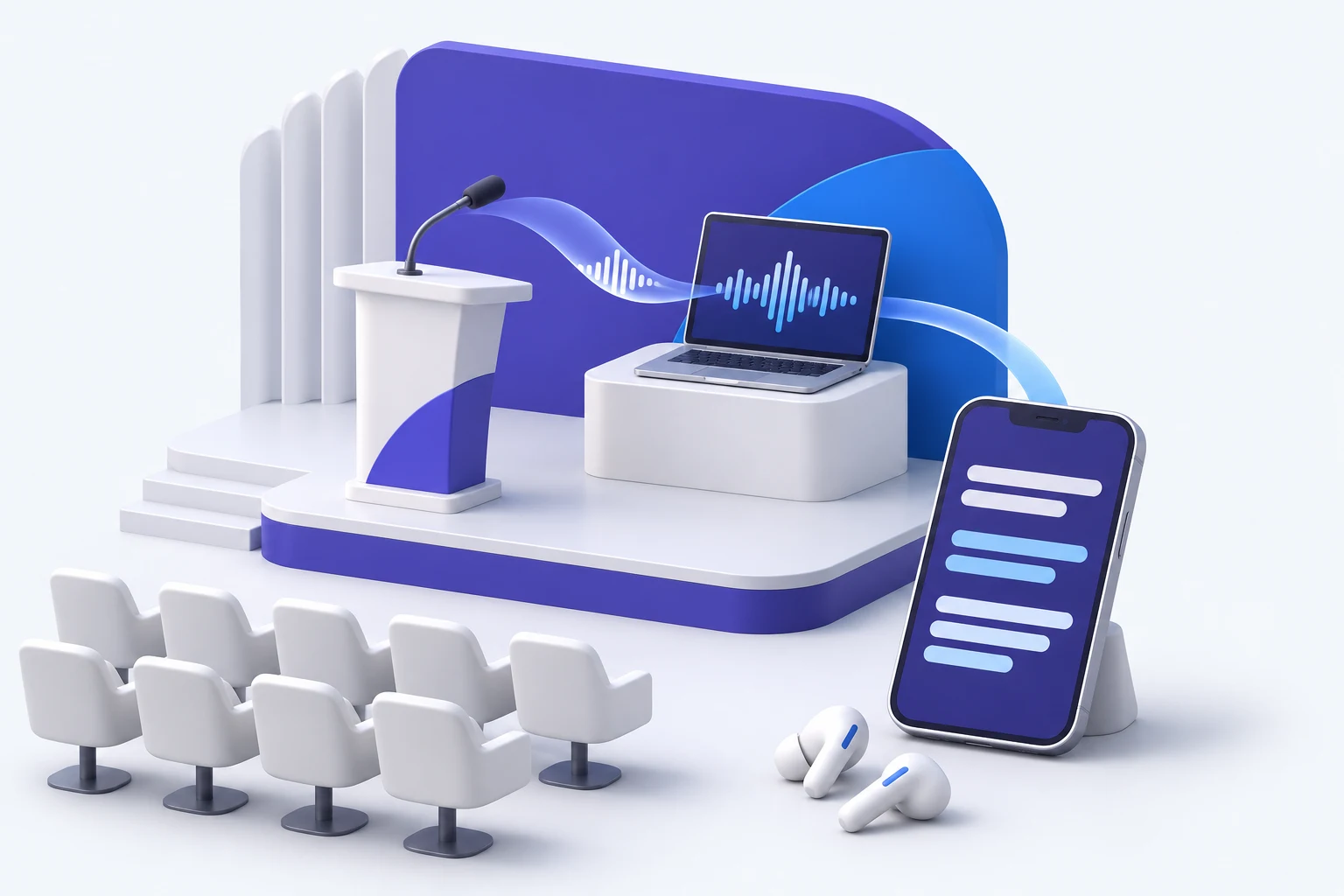
  • Put captions on a projector or in an OBS stream. Guests can scan a QR code to read the translation on their phones and listen if translated audio is enabled.
  • Set up a separate programme, link and translation languages for each room. Use a compatible provider to add a second language or switch translation direction for a panel.
  • Correct captions, translations and speaker names during a broadcast.
Video examples

These clips use synthetic voices.

Captions on a projector

Show speech and translation full screen or as an overlay on a second display.

Captions and audio by QR code

Share the hall’s QR code. Guests choose captions on their phone and can listen through headphones when translated audio is enabled.

A multilingual panel

Set a second translation language or switch translation direction as speakers change, with a compatible provider.

One link per conference room

Give each hall its own audience link, programme, languages and speaker vocabulary.

Subtitles in OBS

Add the subtitle URL as a browser source in OBS to put captions into the stream.

Correct captions live

Edit the original, translation or speaker names and send the corrected text to the screen.

Transcripts and summaries

  • Record a meeting or interview, or import an MP3, M4A or WAV file to turn it into text.
  • Generate a summary from the saved transcript when the summary service is available.
Video examples

These clips use synthetic voices.

Record a meeting or interview

Record the microphone, keep a transcript and distinguish speakers when your recognition engine supports it.

Transcribe an audio file

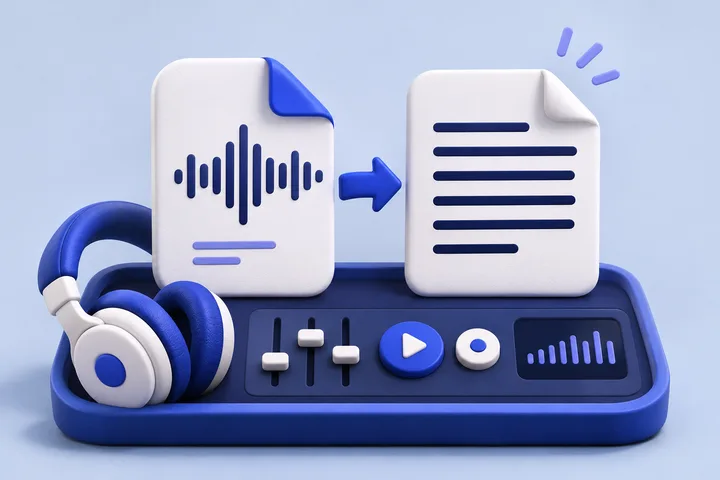
Import an audio file, such as MP3, M4A or WAV, to transcribe a recorded interview or lecture.

Turn a meeting into a summary

Open the saved transcript in My meetings and generate an AI summary when the summary service is available.

On your computer or in the cloud

Speech recognition, translation and the voice your listeners hear are separate choices.

On your computer

To work offline, install Voice, select on-device processing, and download the files for the languages you need. For spoken translation, install a voice in the target language.

With on-device processing and no broadcast, the audio, transcript, and translation stay on your computer.

Speech recognition
Get live captions from your microphone or computer audio and save the transcript.
Translation
Translate live captions offline for supported language pairs.
Spoken translation
Listen to the spoken translation during a conversation or talk.

Through Abasis Cloud

When a service uses a single engine, the result depends on how well that engine handles your language. We compare offerings from dozens of providers and develop our own models. We choose a solution for each stage separately.

Speech recognition
We compare engines on real speech recordings. We choose the one that transcribes speech most accurately for the language and accent while keeping pace with the speaker.
Translation
We choose a provider for the specific language pair and direction. We look at how accurately it conveys the meaning and how quickly it delivers a translation during a live session.
Spoken translation
We select natural-sounding voices with clear pronunciation in the target language. At events, you can assign a different voice to each speaker so listeners can tell them apart.

People in the room scan a QR code to open captions directly in their phone’s browser, with no app to install. Each viewer chooses their own caption language on their phone. If spoken translation is enabled, they can listen through headphones. Local viewing works even without internet access when the phone and the computer running Voice are on the same Wi‑Fi network. A public link and access for remote participants require an internet connection.

Get Abasis Voice

Put Voice on your computer

Install the desktop app to capture speech. People following a shared session can join from their browser.

macOSApple silicon & Intel WindowsWindows installer
Updating an existing installation

Finish your live session, then quit Abasis Voice and download the installer for your computer.

  • macOS · Open the DMG and drag Abasis Voice into Applications. Choose Replace when prompted.
  • Windows · Run the downloaded installer, then reopen Abasis Voice.