Live captioning for events with a QR code
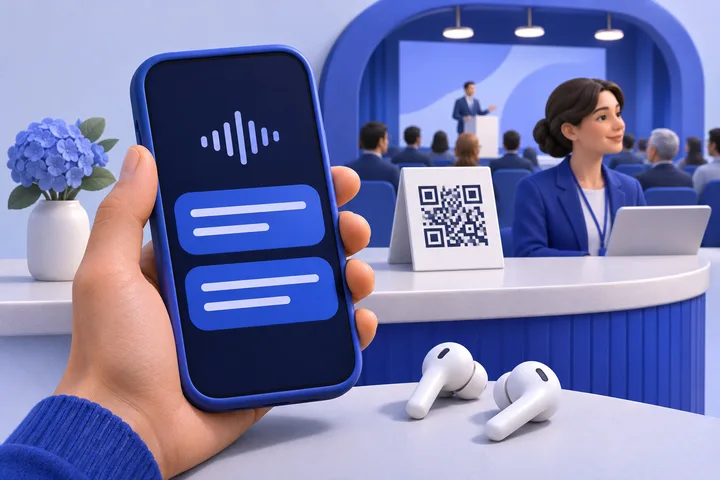
For live captioning at a conference, send the stage audio to Abasis Voice and start Translate on guest phones. Attendees scan a QR code, choose one of the session languages and read captions in their phone browser. Abasis Voice for conferences
Route the sound from the venue
Ask your AV technician to send a feed from the mixer to the computer running Abasis Voice. Select that input in the app. Test the lectern mic, the handheld mic for questions and any other source you intend to caption. Somebody standing next to the laptop is a useful initial check, but tells you little about whether the microphone in the back of the room reaches the mixer feed.
Start the guest session
- In Abasis Voice, choose Translate on guest phones.
- Select the Spoken language and Default listener language. Check that the session offers the languages your audience needs and that your account has access to audience sharing.
- Select Start for guests. Open the QR code on a separate phone and check that a full sentence comes through in the expected language.
- Put the code on a welcome slide or a sign at the entrance. Add a short instruction next to it. “Scan to read the live captions. Choose your language.”
Test on the same network as your guests
For a local QR session, connect the phone and the computer running Voice to the same Wi-Fi network with device-to-device access. Try the guest Wi-Fi on a phone before the event. If the QR page fails to open even though both devices have internet access, ask the venue to check whether the guest network isolates devices from one another.
A local browser page can work without internet access. If the venue will also be offline, prepare on-device processing for your language pair and rehearse with the internet disconnected while keeping the local network running. A public link for remote viewers requires internet access. Abasis Voice network and offline setup
When to use a projector or a QR code
For one shared translation on the room display, choose Translate on a screen and select the projector. If attendees read in different languages, check the language options on a phone. For a local QR code, display the Wi-Fi network name alongside it.
Set up offline speech translation · Compare Abasis Voice and Wordly for events
Run an English–Greek conference · Add translated captions to OBS
Create a QR slide and print sign · 15-minute operator checklist
Connect the venue mixer · Measure the delay to a guest phone